Certification Dashboard
Upcoming Exam Appointment
Section titled “Upcoming Exam Appointment”Here you can see all your scheduled appointments. As of this January, you can only have 2 exams scheduled at the same time. You can directly access PearsonVUE portal from here by clicking the Reschedule button.

Certifications
Section titled “Certifications”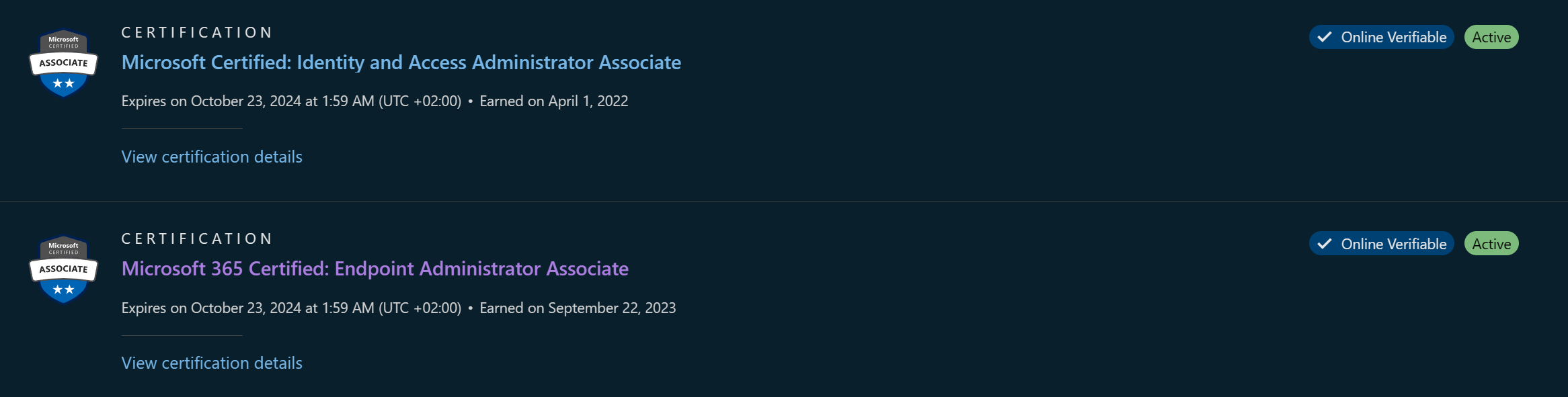
Here you can access all your certifications, share them around, download them, see when they expire and if you are in the renewal window.
Past Exams
Section titled “Past Exams”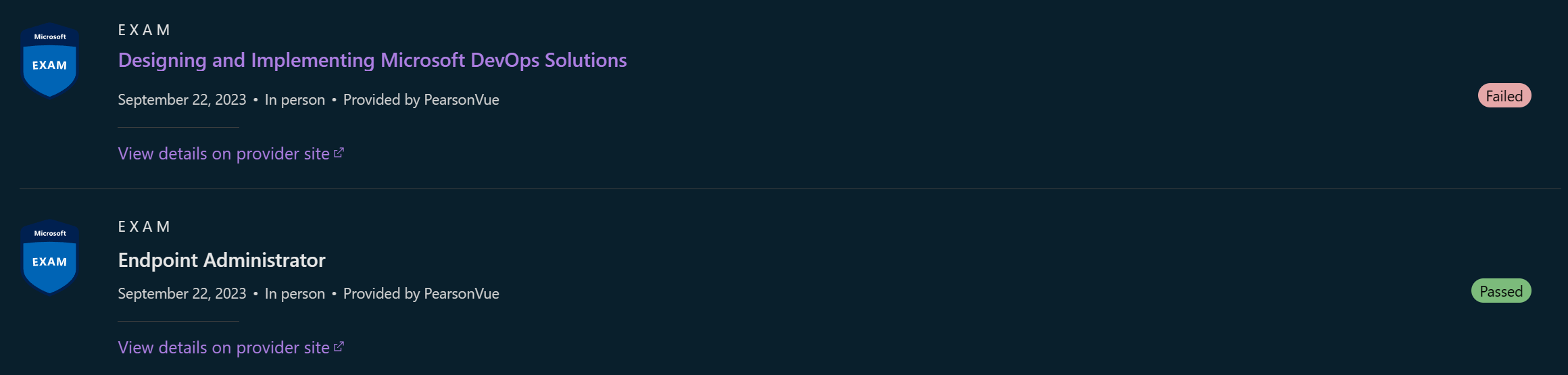
Similarly, to the Certifications section, you can find all your exams here. One added bonus is that this is another place you can directly access PearsonVUE portal from by choosing the View details on provider site.
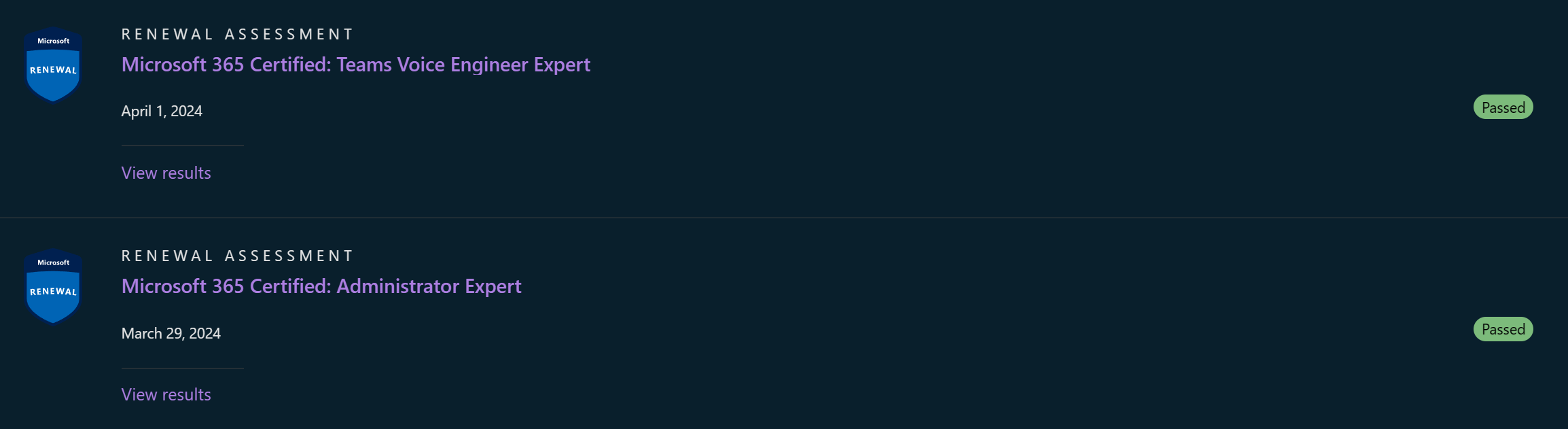
Here you can access all your assessment attempts. So, if you fail you can check which areas you were weak in and study up on those more.
Microsoft Credential Support
Section titled “Microsoft Credential Support”
And lastly, you can see Microsoft certification support URL. This is really important since Microsoft certification support is the only place where you can solve certification and profile issues or try to get exams refunded/rescheduled after PearsonVUE messes your exam up and you lose the exam attempt.
Usually contacting PearsonVUE themselves is a huge waste of time. So, this is the best option.
PearsonVUE Portal
Section titled “PearsonVUE Portal”Besides Certification Dashboard, you can also access PearsonVUE Portal using this URL PearsonVUE Portal
When you are in PearsonVUE portal, you can navigate to the main page by clicking the PearsonVUE Home button.
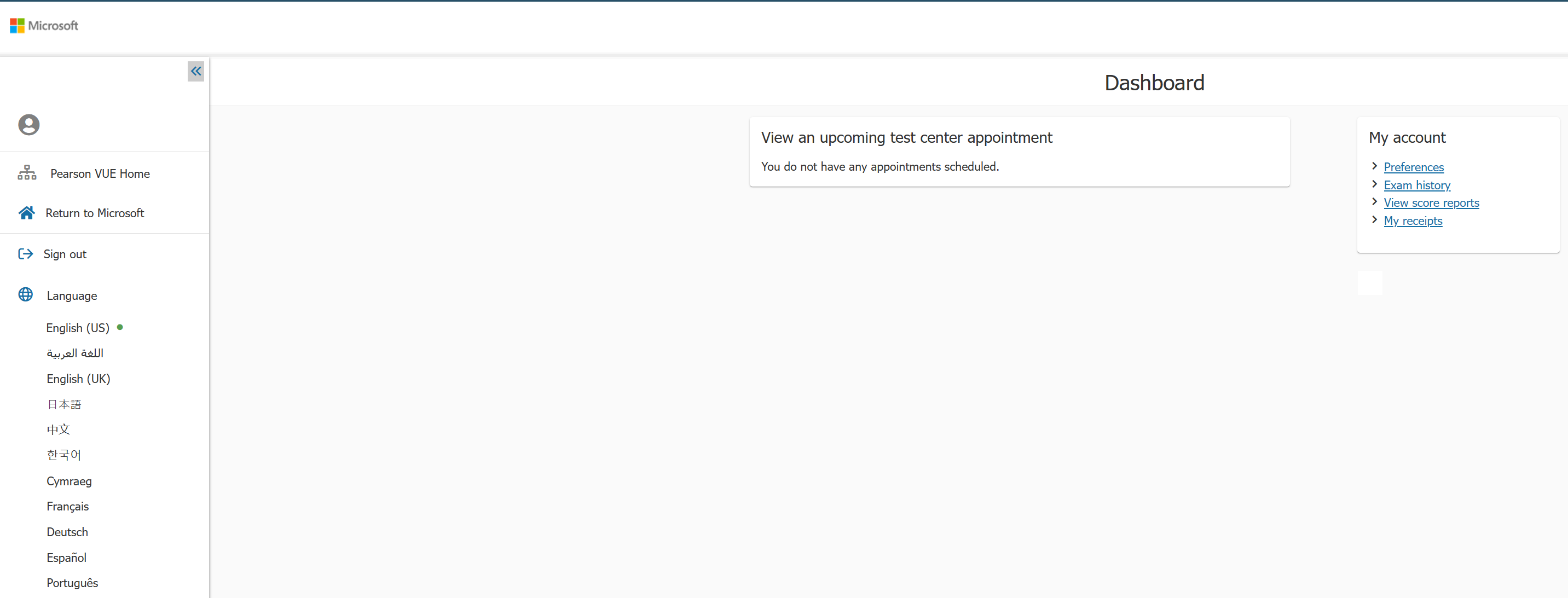
The most important thing here, besides being able to see all upcoming exams and reschedule them, you can access your past exam score reports. The option is located under My account > View score reports on the right side of the page.
Sources
Section titled “Sources”View and Share badges | Microsoft Learn